
Using the Dashboard
The dashboard gives you a quick view of document activity, upload options, recent documents, and shortcuts to the areas you use most.
Upload a Document
Use the upload area to start a new signing workflow. Drag and drop a PDF into the box, or click the browse option to select a file from your device.
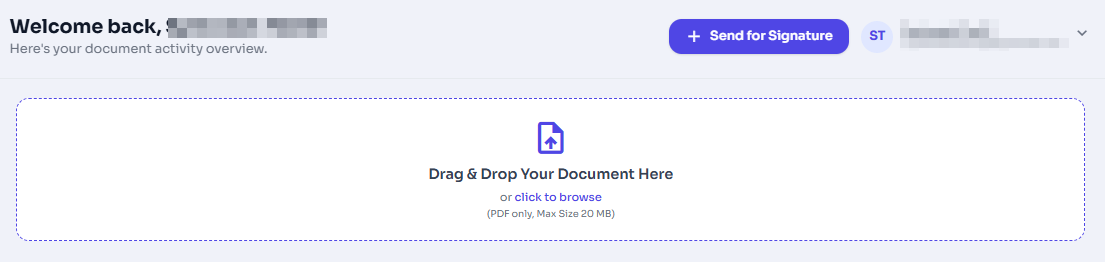
Figure 1: Dashboard upload area with PDF size and page limit information.
Use Quick Actions
Quick Actions help you jump directly to common tasks from the dashboard.
- Send for Signature: Upload a PDF and send it to one or more signers.
- Sign Yourself: Complete a document without sending it to another signer.
- Usage Metrics: Review team usage, where available for your role.
- Manage Account: Open account, plan, retention, and security settings.
- View Analytics: Open reports for document trends and completion data.
Review Recent Documents
The recent documents table shows your latest document activity with status, last update time, and available actions. Drafts can be opened for editing; sent documents can be opened from the details link.
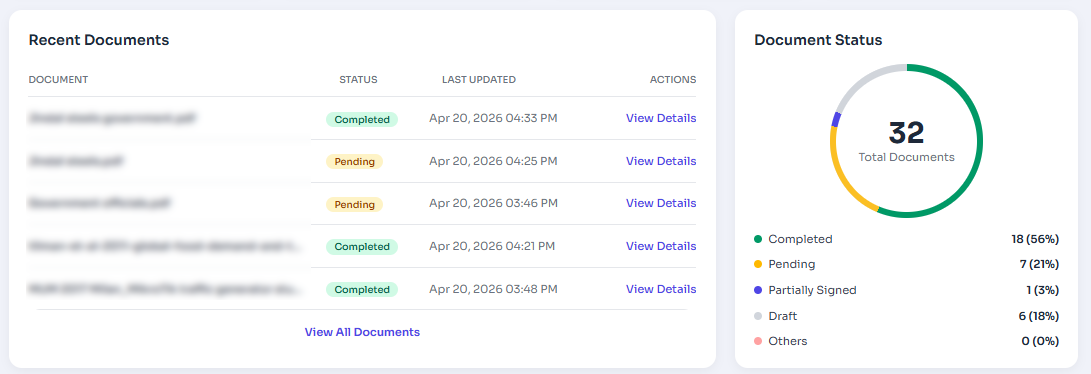
Figure 2: Dashboard recent documents table and status chart
Understand Document Status
The status chart summarizes how many documents are completed, pending, partially signed, draft, or in another final state such as declined or recalled.
Role-Based Access
Some dashboard actions depend on your role and your organization's active plan limits.