Managing Your Users
Effectively oversee your team by managing user accounts from a single interface. The user management dashboard allows you to add new members, edit roles, and monitor access levels.
Understanding the User List
The user list displays all accounts associated with your organization. From here, administrators can view key details such as email addresses, assigned roles, and login activity.
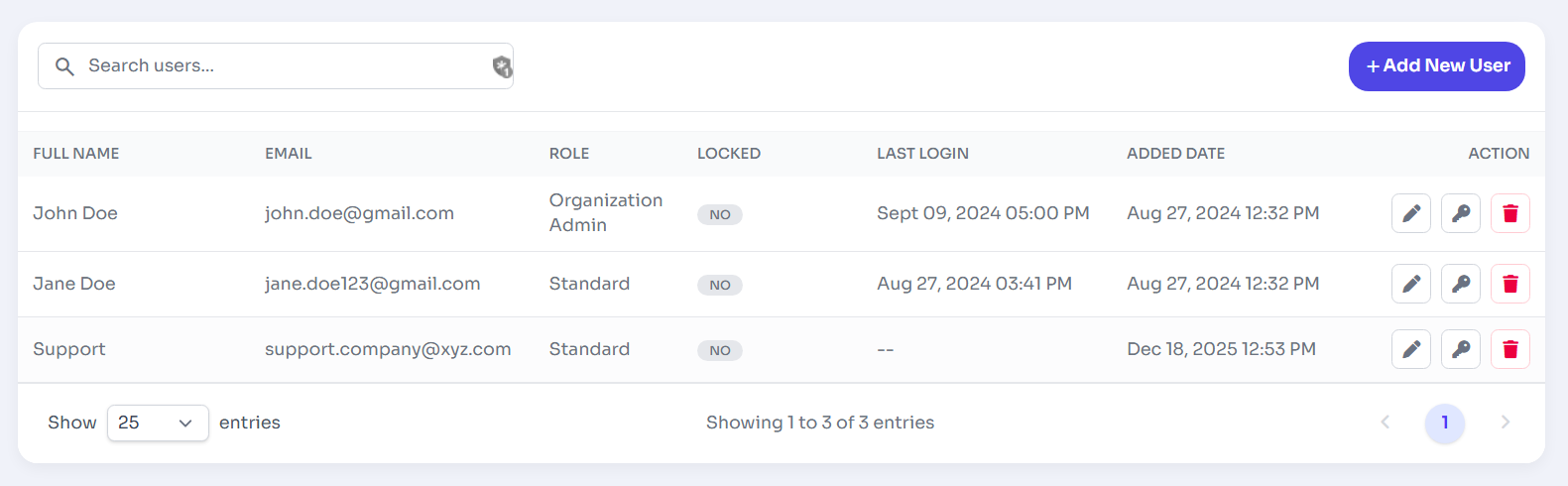
Figure 1: Manage Users.
Adding New Users
Expanding your team is straightforward. To invite a new member to your organization, locate the primary action button at the top right of the list.
- Add New User Button: Click the blue "+ Add New User" button to open the invitation dialog.
Action Buttons Explanation
The Action column contains three controls for managing user accounts. Each button is intended for a specific administrative task.
1. Edit User
Purpose: Modify the user's details.
What you can update:
- Full name
- Role (e.g., Organization Admin, Standard)
- Account settings
Typical use case: When user information changes or their role needs to be updated.
2. Reset Credentials / Access
Purpose: Reset the user's authentication credentials or access.
Common actions this may trigger:
- Reset user password
- Reissue login credentials
Typical use case: When a user forgets their password or cannot log in.
3. Delete User
Purpose: Permanently remove the user from the system.
Effect:
- User account is deleted
- User can no longer log in
- Access to the system is revoked
Typical use case: When a user leaves the organization or no longer requires access.
Summary
| Button | Function | When to Use |
|---|---|---|
| Edit | Update user details | Profile or role changes |
| Key | Reset login credentials | User login issues |
| Delete | Remove user account | User no longer needs access |
list_alt On This Page
Related Articles
Need more help?
If you can't find what you're looking for, our support team is here to assist you.