
Reviewing Document Details
The document details page shows document information, signer progress, and actions such as recalling a document or sending a signing reminder.
Open Document Details
- Go to Documents from the left navigation or dashboard.
- Find the document in the list by using search, status filter, or date filter.
- Click View Details from the document's action column.
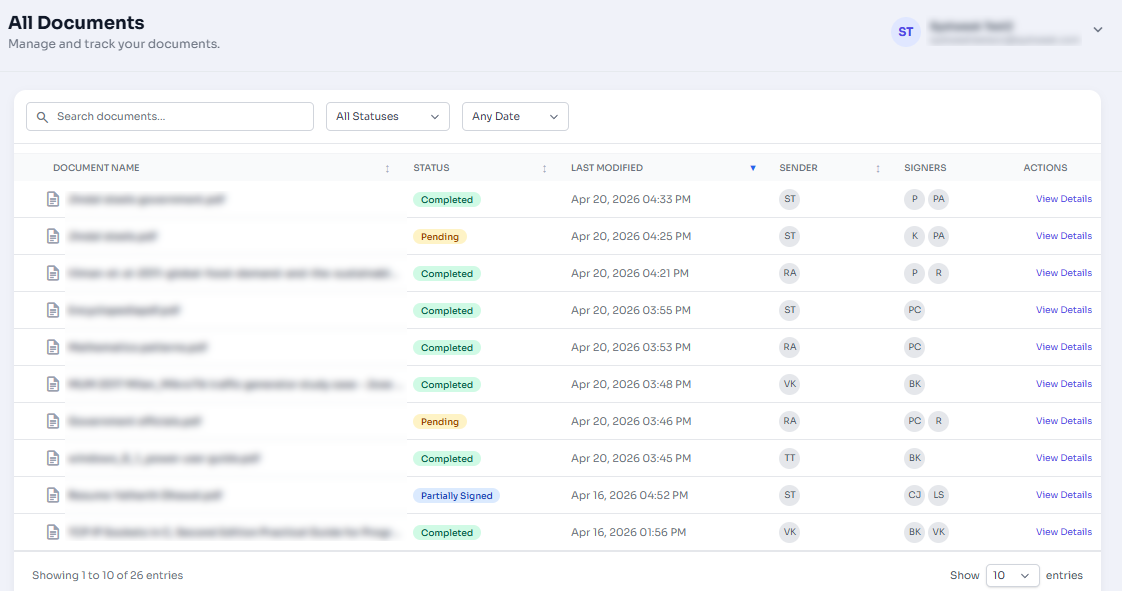
Figure 1: Document list action column showing View Details.
Review Document Information
The details view includes the document name, registration date, status, envelope number, reference number, effective date, expiration date, remarks, and signer information.
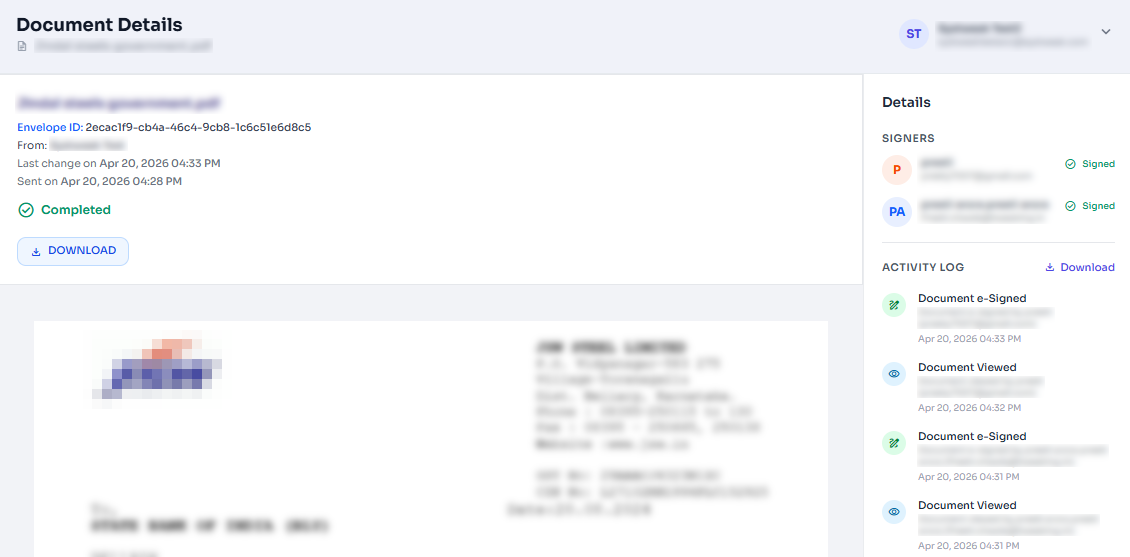
Figure 2: Document details information panel
Track Signer Status
The signer status table helps you confirm who has signed, who has opened the request, and who is still pending.
- Signed: The signer has completed the required action.
- Pending opened: The signer opened the request but has not finished.
- Pending: The signer has not completed the request yet.
- Declined or Delegated: The signer declined or reassigned the signing responsibility.
Recall or Re-Request Signature
For documents that are not fully signed, you can recall the document to stop signing or send a re-request email to selected pending signers.
Before You Recall
Recalling stops the active signing process. Signers will not be able to complete the document after it is recalled.
- Open the document details page.
- Click Recall Document to stop signing, or click Re-request for signature to send a reminder.
- If re-requesting, select the pending signer and confirm the request.
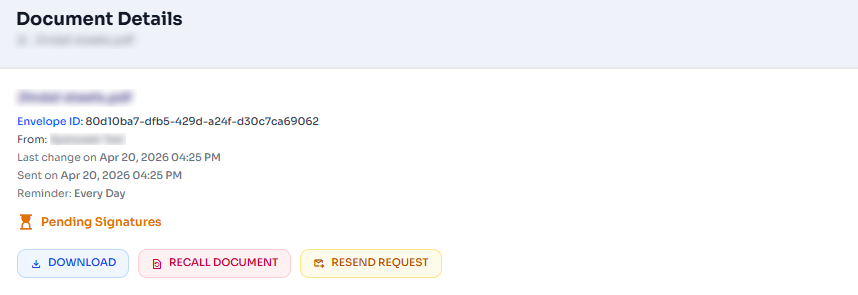
Figure 3: Recall document and re-request signature controls.